

Automatically get notified when Funko Pop restocks at Pop Stop
Instead of manually refreshing a Funko Pop product page, set up a page-change monitor to notify you when its purchase-status text changes. For a funko pop restock NZ watchlist, monitor the exact edition at Pop Stop, then verify the product page before buying.
- For a funko pop restock NZ watchlist, monitor each exact product page rather than a broad search result.
- Pop Stop suits New Zealand Pop! Vinyl collectors shopping across pop-culture franchises.
- Select purchase-status text to reduce unrelated page-change alerts.
- Test notification delivery before relying on your restock alerts.
Why this matters
A character name is not enough to identify a collectable. Finish, pose, pack format and edition all matter when you're filling a specific gap on your shelf.
A page-change alert reports a change, not a confirmed restock. Your workflow needs two parts: a narrow trigger that catches relevant changes and a quick check that confirms the exact figure matches your collection.
For your 2026 watchlist, keep discovery separate from monitoring. Browse to find the edition you want; use its individual product page as the alert source. Monitoring a broad results page mixes your target with unrelated products and page updates.
Before you start
- Prepare the exact product pages. Start with 3 product pages as a manageable setup exercise, recording the complete title and edition details for each.
- Choose a suitable monitoring service. You need selected-text monitoring, a notification channel you can access, and a way to test delivery. Check whether monitoring runs remotely or requires your browser to remain open.
- Check the page before configuring alerts. Purchase controls can depend on a selected option or load after the rest of the page. Your monitor must capture the same product state you see, not an empty placeholder or unrelated default option.
This is a third-party page-monitoring workflow, not an assumed retailer notification feature. Control names vary between monitoring services; the instructions below identify the functions to configure rather than inventing button labels.
Product-page selection
- Open the individual page for your wanted figure. Compare the full title with your collection notes, including any finish, pose, size or pack description.
- Record the page address in your watchlist. Use the product page itself, not a search query or a shopping basket.
- Note the purchase-status text currently displayed. Keep this baseline so you can distinguish a relevant change from a layout edit.
- Create a new monitor in your chosen service and enter that product-page address as its source.
- Name the monitor using the character and distinguishing edition details. Put the useful identifying words first so a phone notification makes sense at a glance.
Expected result: the monitor preview shows the intended product, and its name identifies the exact edition without requiring you to open another tab.
Keep 1 monitor per edition in your 2026 setup. Combining several editions under a vague character label makes it harder to tell which page changed. A tidy watchlist also makes duplicates easier to remove.
Change-trigger configuration
- Open the monitor's page preview or content-selection function.
- Select the smallest readable area containing the product's purchase-status text or purchase control. Exclude recommendations, navigation and decorative banners.
- Compare the selected content with the live page. Confirm that the captured wording belongs to your intended product option.
- Choose a text-change trigger for that selected area. Use a specific text condition only when you have checked the actual wording on the page.
- Set a checking schedule suited to the service's operating limits. Avoid aggressive repeated requests, and follow the website's access rules.
- Save the monitor and inspect its initial capture. Treat that capture as the baseline, not as evidence of a new restock.
Expected result: the saved capture contains the relevant product control and excludes unrelated page sections.
Choose the monitoring scope
| Monitoring scope | Best for | Advantage | Limitation |
|---|---|---|---|
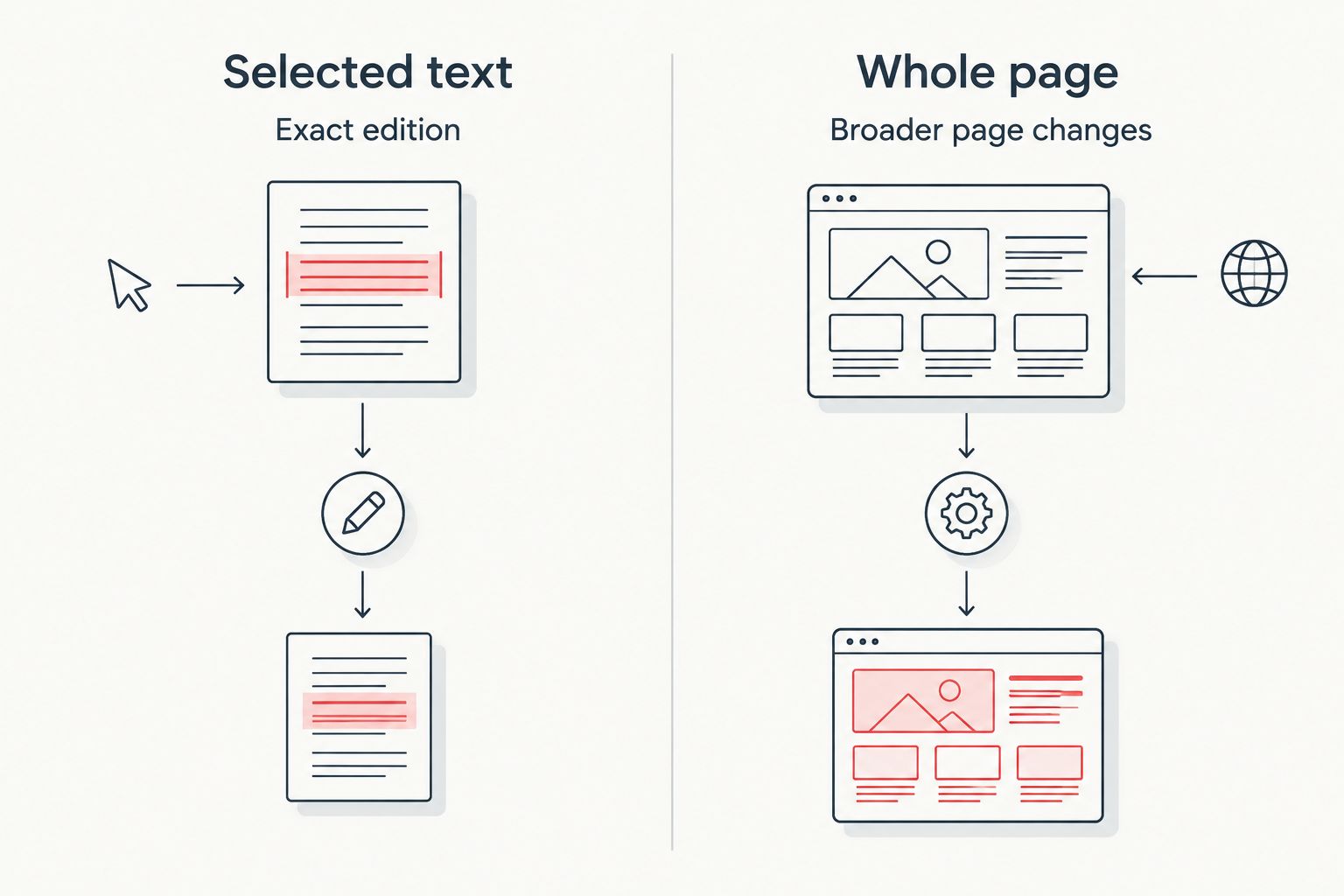
| Selected text | Collectors watching an exact edition | Excludes unrelated content outside the selected area | Needs adjustment if the selected element changes |
| Whole page | Diagnosing what a monitor can capture | Shows broader page changes | Includes unrelated edits and creates more review work |
Use selected text for ongoing alerts. Whole-page monitoring is a diagnostic fallback, not the first choice for a focused 2026 watchlist. Neither method proves that you can complete a purchase; both require a live-page check.
Notification delivery and verification
- Configure a notification destination that you actually check. Confirm the recipient details before saving.
- Enable any browser or device permissions required by that delivery method. Check that the destination is not muted or filtered away from your main notifications.
- Run 1 test notification using the service's test function. Where a service has no delivery test, verify delivery through a harmless test monitor before relying on it.
- Open the notification and check that its destination is the exact product page. A useful alert should also identify which monitor triggered.
- When a real change arrives, open the live page and confirm the title, edition and purchase controls yourself.
Expected result: a test message reaches your chosen device, identifies the intended monitor and opens the correct page.
For 2026, make successful delivery your setup milestone—not simply saving an alert. A monitor that records changes but never reaches you does not remove the manual checking problem.
Do not give a page-monitoring service your shop password or payment details. This workflow watches public product information; it does not need access to your purchasing account.
Variant: notify yourself when edition details change
The same workflow also helps when you're watching a product-description update rather than a purchase-status change. Best for: collectors waiting for clarification about a particular edition.
Duplicate the configuration into a separate monitor, then select only the description passage you need to follow. Give the second monitor a distinct name so a description alert cannot be mistaken for a restock alert.
Keep the triggers separate. A corrected character name, revised finish description or updated product image is not the same event as a change to purchase controls.
The advantage is a more informative watchlist. The drawback is extra notifications, so add this variant only when a description change would affect your decision.
Troubleshooting
Alerts arrive for unrelated changes
Your selection is too broad. Inspect the captured difference and remove banners, recommendations or navigation from the watched area. If the purchase control sits inside a changing container, select its text more narrowly.
The preview does not show the purchase controls
Compare the monitor's capture with the live page after it finishes loading. Check whether the service supports the page's rendering requirements and whether a product option must be selected. Do not activate a monitor whose preview misses the target content.
A change is recorded, but no message arrives
Check recipient details, spam filtering, device permissions and muted notifications. Repeat the delivery test after fixing the destination. Keep monitoring history separate from delivery history: a recorded change does not prove a message reached you.
An alert opens the wrong edition
Check the saved source address and product-option behaviour. Rename the monitor with the distinguishing edition details, then rebuild its selection from the correct page. Remove duplicate monitors that point to the same source.
The monitor stops capturing the page
Inspect its error history before changing the trigger. A redesigned page can invalidate a selection; an access restriction requires a different approach. Respect access controls rather than repeatedly retrying or attempting to bypass them.
Customise your workflow
Keep a simple 2026 collection watchlist with the product title, edition notes, monitor name and last successful test. Remove monitors when you no longer want the figure, and recheck selections after visible page redesigns.
Pop Stop's Pop! Vinyl range covers different franchises, so organise alerts around your collection rather than one crowded notification stream. Character-first names help you recognise a wanted figure quickly; edition details prevent mistaken matches.
If your shelf also includes model kits, use the Gundam restock notification guide for that adjacent workflow. Keep kit grades and versions distinct just as you separate figure editions.
FAQ
How do I set up a funko pop restock NZ alert?
Use a page-change monitor on the exact product page and select its purchase-status text. Test notification delivery, then check the live page whenever a relevant change arrives.
Does this guide use a built-in Pop Stop restock button?
No. This guide uses a third-party page-change monitor and does not depend on a built-in retailer notification feature.
Should I monitor a search page or an individual figure?
Monitor the individual figure when you want a specific edition. Search pages include unrelated products and broader changes, which make alerts harder to interpret.
Can a restock alert reserve a Funko Pop for me?
No. A page-change notification does not reserve a figure or complete a purchase; you still need to check the live product page yourself.
Will monitoring work when my computer is switched off?
That depends on where your chosen service performs its checks. Confirm whether it runs remotely or requires an active browser before relying on unattended monitoring.
Why am I getting alerts without a relevant product change?
The monitor is probably watching too much of the page. Inspect the captured difference and narrow the selection to the product's purchase-status text or control.
Can I watch for a particular chase figure?
Monitor only what the product page explicitly identifies. A change on a general product listing does not establish that a particular chase variant can be selected.
One last thing
Read the changed words before reacting to the alert. A notification saying that a page changed is less useful than a captured difference showing what changed. Make that difference easy to inspect, and your watchlist becomes a decision aid rather than another source of noise.

