

Automatically get notified when Gundam kits restock at Pop Stop
Instead of manually refreshing Gundam listings every day, set up a page-change monitor for the exact kit you want and send its alerts to your email. This 2026 guide covers a practical gundam model kit restock NZ workflow without assuming the retailer has a built-in notification button.
- For gundam model kit restock NZ searches, monitor the exact kit page rather than broad search results.
- Pop Stop sells Gundam models; use exact kit names, grades and scales to keep alerts relevant.
- A page-change alert reports an edit, not a reservation or confirmed purchase opportunity.
- Test email delivery before relying on your Gundam restock notification workflow.
Why this matters
A Gundam name alone is not a precise shopping target. Grade, scale and edition distinguish different builds, so a notification about the wrong version adds noise rather than helping your collection.
Pop Stop is best for NZ collectors who want Gundam models alongside other pop culture collectables. Start at Pop Stop and identify the exact model before configuring anything. The store is New Zealand-owned and sells Gundam models, but this workflow uses an independent page monitor rather than claiming a store-operated alert service.
For your 2026 watchlist, separate the model you actually want from acceptable alternatives. If you are still choosing your first build, read the guide to Gundam model kits for beginners before creating notifications for every familiar mobile suit.
Before you start
- Gather the essentials: an email address you check, access to the exact product page, and a page-change monitoring service that supports selected-page regions and email notifications.
- Check how monitoring runs: a local browser extension generally needs its browser or device running; a hosted monitor runs remotely. Confirm the requirements of your chosen service before depending on it.
- Pre-empt the main gotcha: dynamic pages can display differently to a monitoring service. Require a readable preview of the selected product information before saving the monitor; a blank preview is not a working setup.
You do not need to give a monitoring service your store password. Monitor public product information, not your basket, account page or checkout. Avoid services that request unrelated permissions for a simple page-change task.
Choose your notification workflow
Use page monitoring when you need the system to detect a product-page edit. Use email filtering when you already receive relevant messages and need to make them easier to notice. These solve different problems.
| Workflow | Best for | Advantage | Limitation |
|---|---|---|---|
| Selected-region page monitor | Watching an exact Gundam kit page | Detects changes without repeated manual visits | Requires a readable page and careful region selection |
| Email filter | Organising relevant messages you already receive | Keeps matching messages together | Does not detect website changes or create a retailer notification service |
For a kit-specific alert, choose the selected-region page monitor. Keep the email filter as an optional second layer, not a substitute for detection. Neither method reserves a model or places an order.
Exact-kit target
- Open the product page for your chosen Gundam model, rather than leaving the monitor on a search-results page.
- Record the full model name, grade, scale and edition exactly as the listing presents them. Include the product identifier when one is shown.
- Check that the page describes an assembly model kit, not a card-game item, figure or accessory with Gundam in its name.
- Give the monitor a recognisable name using those details. Use 1 product page per monitor so every message points to an identifiable target.
Expected result: you can tell which build the monitor follows without opening the page. If the monitor name only says Gundam, make it more specific.
Keep a small watchlist beside your monitor dashboard. Record each target, its identifying details and whether you still want it. This stops an old notification from pulling you towards a build you have already replaced on your wish list.
Page-change trigger
- Add the exact product-page address to your chosen monitoring service.
- Open its page preview and select only the product information relevant to the change you want to detect. Exclude recommendations, rotating banners and unrelated page sections.
- Compare the selected preview with the same area in your browser. Confirm that both show the intended product and that the monitor is not reading a loading placeholder.
- Choose a checking schedule supported by the service and permitted by the website. Avoid aggressive repeated requests.
- Save the initial page capture as the comparison baseline.
Expected result: the monitor has a readable starting capture for one specific product region. Future alerts should concern that region, not every edit across the page.
For a 2026 setup, start with change detection rather than a guessed keyword rule. A rule that depends on wording you have not observed is difficult to verify. Once you have seen a genuine change, refine the trigger using the page's actual text.
The process is simple: identify the kit, isolate the relevant information, establish a baseline, and route changes somewhere you will notice them.
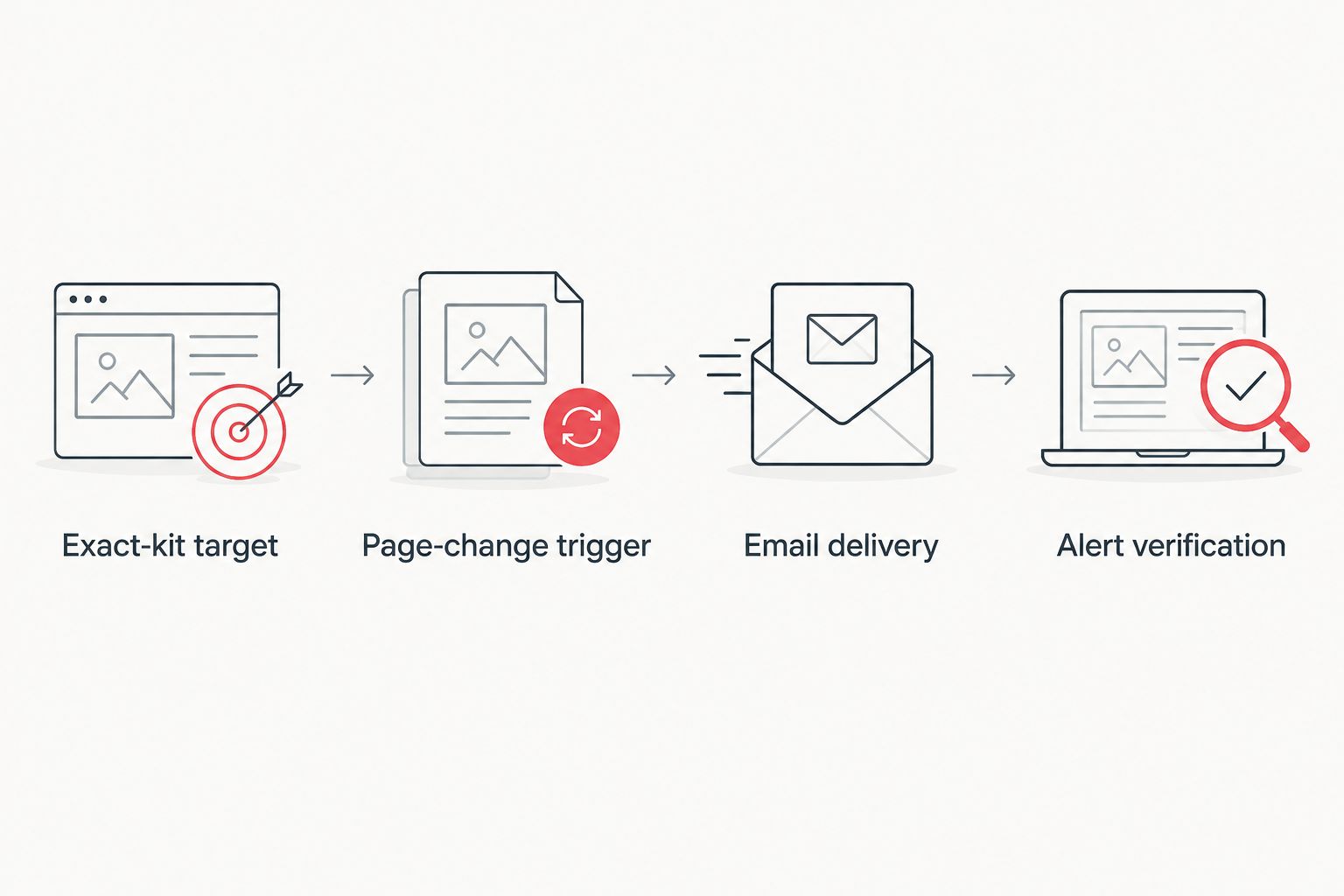
Email delivery
- Select email as the notification channel within your monitoring service and enter the address you actually check.
- Complete any email verification the service requires.
- Send 1 test notification using the service's test function, if provided. Otherwise, verify delivery through its documented testing process before relying on the monitor.
- Check your inbox and junk folder, then allow messages from the verified monitoring sender through your email controls.
- Enable notifications for that sender or destination folder if you want your phone to flag incoming messages.
Expected result: a test reaches the intended inbox and you can identify which monitor sent it. A saved configuration alone does not prove that delivery works.
Keep alert messages distinguishable from newsletters. Do not create an automatic forwarding rule to an address you do not control, and never share account credentials to make notifications work.
Alert verification
- Open the monitor's change comparison before treating a message as relevant.
- Check what changed: product information, a recommendation, a banner or an error message.
- Make 2 identity checks on the product page: confirm the model, then confirm its grade, scale and edition.
- Read the current page directly before making any purchase decision. Treat the alert as a prompt to inspect, not an instruction to buy.
- Pause or delete the monitor when you no longer need it.
Expected result: you can distinguish a useful product-page change from a false alarm and retire completed targets.
Keep a short note of false alarms during your 2026 setup. If the same unrelated area repeatedly triggers messages, narrow the selected region rather than training yourself to ignore the inbox.
Route relevant emails into a dedicated folder
An email-only variant works when you already receive messages relevant to your kit search. It organises incoming information; it does not detect changes on the retailer's website.
Create a folder with a clear name, such as Gundam alerts. Build a filter around a verified sender and identifying text from a real message, then test the filter against an existing email. Avoid filtering every message containing Gundam into an urgent folder: broad matching defeats the point of a precise watchlist.
For 2026, keep monitoring-service messages separate from general retail emails. Use the exact model name where possible, and review filtered messages before allowing any automatic deletion or archiving.
Troubleshooting
- The preview is blank or shows an error. Reopen the public page in your browser and compare it with the monitor capture. Try the service's documented rendering options; do not bypass access restrictions.
- Every check produces an alert. Inspect the difference view and remove changing banners, recommendations or timestamps from the selected region. Save a fresh baseline afterwards.
- The test email never arrives. Check the destination address, verification status, junk folder and mail rules. Fix delivery before relying on the workflow.
- Alerts identify the wrong kit. Replace the broad search or category target with the exact product page. Recheck the selected grade, scale and edition.
- The monitor stops after you close your laptop. Check whether it runs locally. Keep the required browser running or choose a permitted hosted setup that does not depend on your device.
Customise your workflow
Expand by adding distinct targets, not broader triggers. Keep your first-choice kit and alternatives in separate monitors so you can pause one without losing the others.
Review your 2026 watchlist whenever your build plans change. A collector choosing a display piece needs different targets from someone organising a group build; use the model's identity and your intended project to decide what stays.
Prepare your workspace while the alerts handle page checks. Tools, lighting and somewhere safe for loose parts are more useful than an inbox full of models you never intended to build.
FAQ
How do I automatically get Gundam model kit restock alerts in NZ?
Use a page-change monitor on the exact model's product page and route its notifications to email. Select a relevant page region, verify the preview and test delivery before relying on it.
Does this guide use a built-in Pop Stop restock button?
No. This guide uses an independent page-change monitor and does not depend on a built-in Pop Stop notification feature.
Can an email filter detect a Gundam product-page change?
No. An email filter organises messages that have already reached your inbox; a page monitor detects changes on a website.
Why am I getting alerts for unrelated changes?
Your monitor is probably watching a broader page region than necessary. Inspect the comparison view, exclude unrelated content and save a new baseline.
Will a Gundam page-change alert reserve the kit for me?
No. A page-change notification does not reserve a kit or place an order. Open the exact product page and review its current information yourself.
Can I monitor a kit without leaving my laptop on?
A hosted monitoring service runs remotely rather than depending on your laptop. Check the chosen service's operating requirements and confirm that its page preview is readable.
What details should I put in a Gundam alert name?
Include the model name, grade, scale and edition shown on the listing. Add the product identifier when one is provided so similar models remain distinguishable.
One last thing
The best first alert is a successful test, not a product-page change. Prove that your notification reaches you before trusting the workflow, then keep only the kit targets you genuinely want to build.

