

How to connect Google Maps to your nearest Pop Stop store
Instead of retyping an address every time you plan a collectables run, find your nearest Pop Stop branch in Google Maps, check the destination, and save the place for repeat visits. This is a directions workflow, not an account connection: you do not need to link your shop account to Google.
- For a pop stop store locator google maps search, verify the branch address before choosing Directions.
- Pop Stop is best for New Zealand pop culture collectors shopping across figures, manga, trading cards and board games.
- Google Maps handles route planning; a saved place does not confirm opening hours or arrange a purchase.
- Save the branch for repeat visits, but check your starting point and travel mode each time.
Why this matters in 2026
A familiar shop name is not enough to confirm a destination. Google Maps searches depend on the area you search and your map position, so open the individual place listing before you plan the journey.
Choose the right branch first; compare routes second. A short route to the wrong place is still the wrong trip. For a 2026 visit, check the address and that day's opening hours rather than relying on a previous visit or an old screenshot.
Before you start
- Have Google Maps ready. Use the mobile app for turn-by-turn navigation or a browser for planning. Sign in to a Google Account if you want saved places associated with that account; basic directions do not require a shop account.
- Know your starting area. Have your suburb, town or starting address ready. Location permission helps Maps locate you, but you can enter the starting point manually instead.
- Watch the destination pin. A business listing and its navigation endpoint are not the same as a confirmed entrance. Check the street address and surrounding streets, especially when a destination sits inside a larger retail complex.
You do not need an order number, payment details or a third-party automation service. Keep the setup focused on finding and saving the correct physical destination.
Branch search
- Open Google Maps and select the search field.
- Enter Pop Stop with your town or suburb. Adding the area helps distinguish the intended shop from unrelated results.
- Open an individual business listing, rather than starting directions from the general results screen.
- Read the branch name and full street address. Compare the address with current information from the retailer before travelling.
- Inspect the map around the pin. Check the street name, nearby intersections and whether the pin appears within a larger building.
Expected result: you have an individual place listing with an address you recognise as your intended destination. You have not yet committed to a route.
If several branches appear, do not assume the first result is nearest. Search results are not a route comparison. Open the plausible destinations and compare journeys from the same starting address using the same travel mode.
For this 2026 workflow, treat photos and reviews as orientation aids, not proof of current hours or access. A recognisable storefront photo helps you understand what to look for, but the address remains your main destination check.
Route settings
- Select Directions on the verified place listing.
- Select the starting-point field. Use Your location when the location marker is correct, or enter the address you will actually leave from.
- Choose the relevant travel-mode icon. Plan for driving, walking or public transport according to how you will make the trip.
- Review both endpoints. Check the origin as carefully as the destination; a remembered starting point can produce an irrelevant journey.
- Inspect the route's final approach. Look for the street you will arrive on and where the route ends relative to the building.
- On the mobile app, select Start when you are ready to begin navigation and that control is offered for your selected route.
Expected result: Maps displays a journey between your chosen starting point and the verified shop, using your intended transport mode.
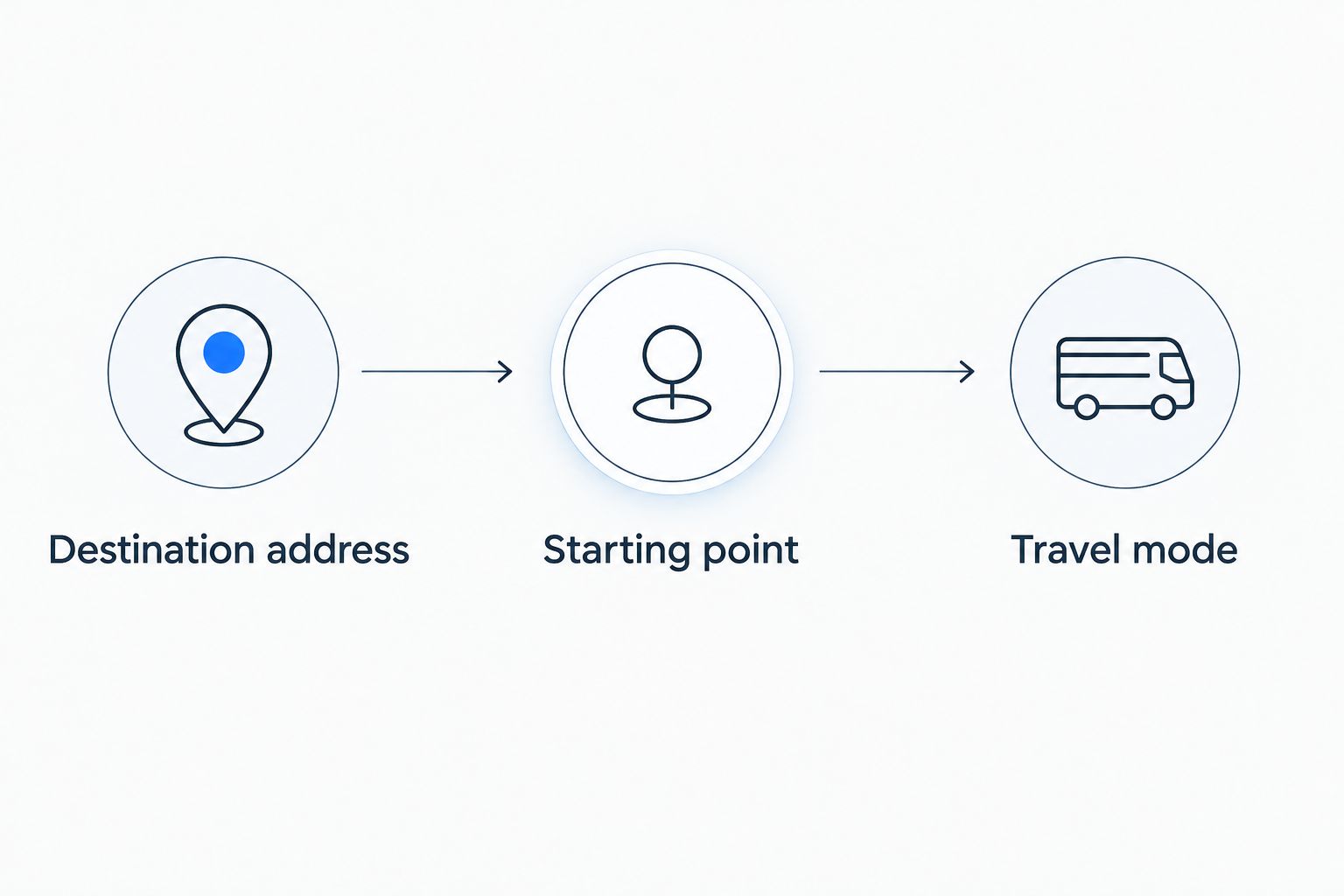
Use 3 checks before departure: destination address, starting point and travel mode. These are setup checks, not a guarantee about traffic, access or arrival time. Review the route before moving, and stop somewhere safe before changing navigation settings.
Saved places
- Return to the individual business listing after checking its address.
- Select Save.
- Choose an existing list, such as Want to go, or create a list for shops you visit.
- Follow the on-screen confirmation to finish saving the place.
- Open your saved places and select the entry again to confirm that it opens the intended branch.
Expected result: the branch appears in your chosen list under the Google Account you used to save it.
Save the place, not a screenshot of the route. A saved place lets you request fresh directions from a different starting point. A screenshot records only what was displayed when you captured it.
Keep 1 saved place for each branch you actually visit, with a clear list name. Saving a destination is useful for repeat trips, but it does not connect purchases, reserve products or replace a check of current opening hours.
Plan on desktop, navigate on mobile
A desktop browser is useful when you want a larger map for comparing routes. A phone is better suited to following directions during the journey. Neither method changes the need to verify the destination.
| Workflow | Best for | Advantage | Limitation |
|---|---|---|---|
| Google Maps mobile app | Navigation during the trip | Keeps the route with you | Accurate location depends on device settings and surroundings |
| Google Maps in a desktop browser | Planning before departure | Gives you more map space to inspect the journey | Does not automatically put an active route on your phone |
To move from desktop planning to mobile navigation:
- Find and verify the branch in the desktop version of Google Maps.
- Save the place while signed in to your Google Account.
- Open the mobile app using the same Google Account.
- Find the saved place and select Directions.
- Set your actual departure point and transport mode again.
Expected result: your phone opens the same destination, with a route calculated for the journey you are making now.
The key distinction is simple: saving a place preserves the destination, not every route setting. Check both endpoints whenever you switch devices or leave from somewhere different.
Troubleshooting
The search shows an unrelated business
Add the town or suburb to the search, then inspect the full address. Do not select a result solely because its name looks similar. If you cannot confirm the address, resolve that before starting directions.
Maps starts from the wrong place
Open Directions and replace the starting-point field with your departure address. If the device's location marker is inaccurate, use a typed address rather than repeatedly recalculating from the same incorrect marker.
The saved branch is missing on your phone
Check which Google Account is active on each device. A place saved under one account does not appear in another account's personal lists. Reopen the correct list after switching accounts and confirm the branch address.
The route ends beside the building
Zoom in on the final approach and compare it with the street address. For a shop inside a larger complex, use the complex's entrance information and on-site signs for the final approach. Never follow a pin through a barrier or restricted accessway.
The displayed hours conflict with other information
Confirm the intended visit directly with the retailer before making a special trip. In 2026, a saved listing or screenshot still does not establish that a shop is open on a particular holiday. Keep route planning separate from confirming the visit.
Customise your workflow
Build your repeat-visit routine around the destination, not around a fixed route. Before each trip, check 2 endpoints: where you are leaving from and which branch you intend to visit. Then choose your transport mode.
If you are heading out for Pop! Vinyls, manga, Pokemon, Magic the Gathering or Gundam models, keep your shopping notes separately from Maps. Pop Stop sells pop culture collectables, while Google Maps handles the journey; saving a pin does not send the shop your shopping list.
For a shared outing, send your companion the verified place through Maps' Share control. Ask them to check the branch address too, rather than sending only a screenshot of search results.
FAQ
How do I find my nearest Pop Stop in Google Maps?
Search for Pop Stop with your town or suburb, then open an individual listing and verify its address. Compare routes from the same starting point and transport mode rather than assuming the first search result is nearest.
Do I need to connect my shop account to Google Maps?
No shop account connection is needed for this directions workflow. Search for the destination in Maps, verify the address and select Directions.
Can I get directions without sharing my live location?
Yes, enter a starting address manually in Directions. The route will use that address instead of relying on your device's current-location marker.
Why does my saved shop not appear on another device?
Check that both devices use the same Google Account and that you are opening the correct saved list. Personal saved places belong to the account used when saving them.
Does saving a shop in Google Maps reserve anything?
No, saving a place creates a personal map reference, not a purchase or reservation. Handle shopping arrangements separately with the retailer.
Should I check opening hours again before a 2026 visit?
Yes, check the intended day's hours before travelling. Confirm directly with the retailer when displayed information conflicts or you are making a special trip.
One last thing
The nearest map pin is not necessarily the most convenient journey. For your next 2026 visit, compare the actual routes using your chosen transport mode, then check the final approach before leaving. A verified destination beats a familiar-looking search result.

