

Automatically get notified when Pokemon cards restock at Pop Stop
Instead of manually refreshing Pokémon product pages, set up a page-change monitor that alerts you when the selected purchase-area text changes. For a pokemon cards restock notification nz workflow at Pop Stop, monitor the exact item, test delivery, and open the live page before acting on any alert.
- Use a page-change monitor for Pokémon card alerts without assuming Pop Stop has a built-in notification service.
- For pokemon cards restock notification nz searches, exact product monitoring is more targeted than homepage monitoring.
- Watch the purchase area rather than banners, recommendations or the entire page.
- A page-change alert reports a change; it does not reserve Pokémon TCG products.
Why this matters
A notification is only useful when it points to the Pokémon TCG item you actually want. Watching an entire shop page mixes meaningful product changes with unrelated edits, leaving you to sort through the noise.
Pop Stop is best for New Zealand pop-culture collectors who shop across Pokémon TCG and merchandise. For this 2026 workflow, keep those interests separate: a Pokémon figure, a trading-card booster and a binder need different watch entries.
The setup below uses an independent page-change monitor, not an assumed retailer integration. It detects visible page changes and sends a message through your chosen notification channel; you still verify what changed yourself.
Before you start
- Have the exact product page: confirm the expansion, product format, language and any variant before creating a watch. A Pokémon character name alone does not identify a trading-card product.
- Have a suitable monitor and notification destination: choose a page-change monitoring service or browser extension with region selection and a notification test. Read its permissions before granting access.
- Check the hidden gotcha: browser-based checks depend on the browser and device running; remotely hosted checks do not use your local browser session. Confirm which method your monitor uses before relying on it.
Do not give a monitoring service your retailer password or payment details. This workflow watches public product information and needs neither.
Product identity and monitoring scope
Choose the page and region
- Open the exact Pokémon TCG product you want to follow. Read the full title rather than relying on the artwork.
- Record 3 identity fields in your watch notes: expansion, product format and language. Add the variant where the listing distinguishes one.
- Add 1 product page to the monitor first. Starting small makes it easier to spot a bad selection before copying the setup.
- Select the smallest stable region containing the purchase controls and relevant product-status text. Exclude navigation, recommendations and rotating banners.
- Give the watch a descriptive name that includes the expansion and format, rather than simply Pokémon.
Expected result: your saved preview shows the intended product’s purchase area, with enough surrounding context to identify it.
Interface labels differ between monitoring tools. Use the control for selecting a page region and inspect its preview; do not assume a button name from another service matches yours.
Compare monitoring scopes
For a targeted 2026 setup, start with a selected region. Use the alternatives below only when the page structure prevents a clean selection.
| Monitoring scope | Best for | Benefit | Limitation |
|---|---|---|---|
| Selected purchase region | Collectors following one exact product | Excludes unrelated page edits | Needs checking after a layout change |
| Product-page text | Pages where region selection fails | Keeps the watch on the relevant item | Includes description and other text changes |
| Whole-page visual comparison | Investigating a failed text watch | Shows visible layout differences | Banners and images create unrelated alerts |
Selected purchase-region monitoring is the first choice for a targeted alert. Whole-page monitoring is a fallback, not a shortcut: a changed recommendation tile says nothing about the item you are following.
Change rules and notification delivery
Configure the change rule
- Capture a baseline after the product page finishes loading. Compare the monitor’s preview with the page in your browser.
- Start with changes to the selected text region. Avoid an exact phrase filter until you have inspected the wording on that particular page.
- If your monitor supports conditions, use wording copied from the actual purchase area. Never guess which phrase the retailer uses.
- Check how often the service runs its checks and whether the watch is enabled. Choose a permitted interval without setting repeated rapid requests.
- Save the configuration, then reopen it to confirm the region and rule survived saving.
Expected result: the saved baseline matches the intended page region, and the rule watches that region rather than unrelated content.
A page-change monitor does not read a retailer’s internal inventory. Its evidence is the page it can load. Keep that distinction in your 2026 watch notes so a change message is not mistaken for a purchase guarantee.
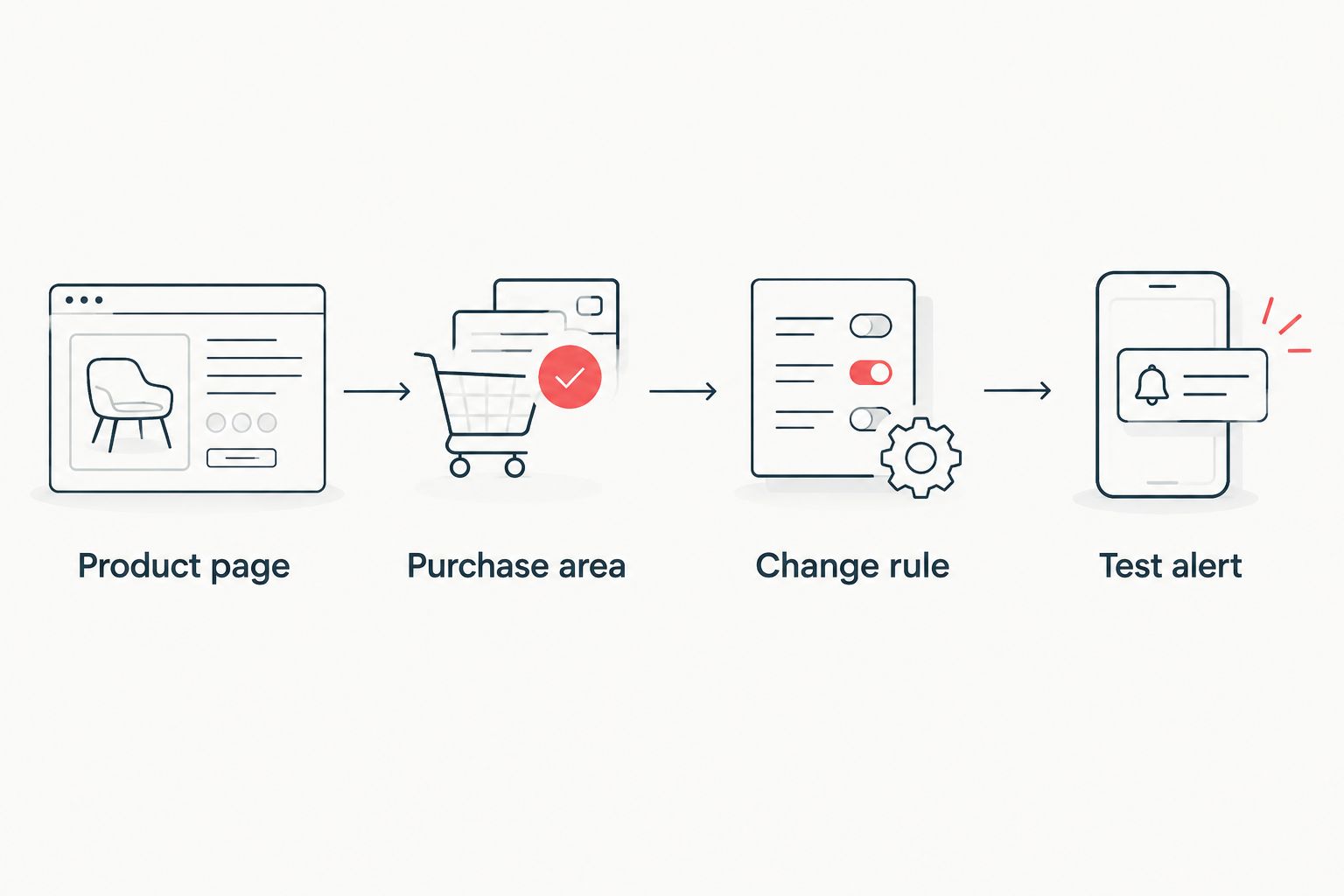
Test the alert channel
- Enter your notification destination in the monitor. Prefer a destination you already check rather than creating another inbox to remember.
- Use the monitor’s notification-test control. Confirm the message arrives and that you recognise the watch name.
- Run a manual page check and inspect its result. A successful notification test alone does not prove the page loads correctly.
- Complete 2 separate checks: notification delivery and page capture. Record both results before adding more watches.
- For device notifications, review browser or app permissions and your phone’s focus settings.
Expected result: a test message reaches you, and a separate capture shows the correct product region.
An email in a spam folder is not a working collector workflow. Move the test into the inbox you use and adjust filtering before relying on future messages. For browser notifications, test with the browser in the same state you normally leave it.
A second workflow: alert on any product update
Use a broader text-change watch when you want to follow listing details, not just purchase-area changes. Best for: collectors checking product language, contents or variant descriptions. The benefit is wider coverage; the drawback is more messages that do not answer your original restock question.
Create a separate watch with a different name. Select the title and description region, capture its baseline, and send its test notification to the same destination. Keep it distinct from the purchase-area watch so each message explains its purpose.
This distinction matters when comparing collection trackers with Pokémon card restock alerts: recording cards you own and detecting a retailer-page change are different jobs. Choose a workflow by what triggers its message, not simply because it mentions Pokémon.
For your 2026 watch list, label each entry by intent: purchase-area change or listing update. Do not combine them into a single ambiguous alert.
Troubleshooting
Alerts arrive for unrelated changes
Open the captured difference and identify the changed element. If it is a banner, recommendation or footer, narrow the region and save a fresh baseline. Do not mute the watch before correcting its scope.
The preview is blank or shows an access challenge
Compare the capture with the public page in your browser. Review the monitor’s rendering settings and supported capture methods. If automated access is blocked, pause the watch; do not try to bypass the restriction.
Test messages arrive, but page checks fail
Treat delivery and detection as separate systems. Inspect the last successful capture, selected region and watch status. Re-select the region after a layout change, then repeat both tests.
Notifications never reach your phone
Check the destination address, spam filtering and device permissions. Send another test after each correction so you know which change fixed the problem. A watch marked enabled does not prove delivery works.
The alert points to the wrong product
Recheck the saved page, expansion, format, language and variant. Replace the watch if its identity is wrong. Similar artwork is not a reason to accept a different listing.
Customise your workflow
Expand only after the first watch passes both tests. Group watches by collecting goal—sealed products, deck-building or accessories—so an alert has a clear reason to interrupt you.
For Pop Stop Pokémon TCG monitoring, keep the retailer name in the watch label alongside the product identity. That prevents confusion when you follow similar items across several shops. Avoid broad watches for every Pokémon-themed item unless merchandise updates are genuinely part of your collecting plan.
Review your 2026 watch list after your collecting goal changes. Pause completed searches and remove duplicates; two watches covering the same region create extra messages, not stronger evidence.
FAQ
How do I set up a Pokémon card restock notification in NZ?
Set up a page-change monitor on the exact product page, select its purchase area, and test notification delivery. Open the live listing when a message arrives to verify what changed.
Does this require a built-in Pop Stop restock button?
No, this workflow uses an independent page-change monitor. It does not depend on a built-in retailer notification service.
Should I monitor a Pokémon category or an individual product?
Monitor an individual product for a targeted alert. A category watch has a broader scope and can report changes unrelated to your chosen item.
Will a page-change notification reserve Pokémon cards for me?
No, a page-change notification does not reserve a product. It reports a detected difference and leaves you to review the live listing.
Why does my Pokémon alert keep reporting unrelated changes?
Your selected region includes content that changes independently of the product’s purchase area. Inspect the captured difference, narrow the region and save a new baseline.
Can I receive alerts when a product description changes?
Yes, use a separate text-change watch for the title and description region. Keep its name distinct from the purchase-area watch so the notification’s purpose is clear.
Do I need to leave my computer on for alerts?
Browser-based monitoring depends on the browser and device running. Remotely hosted monitoring runs outside your computer; confirm the method your chosen service uses.
One last thing
Test the destination before expanding the watch list. A perfectly selected product region is useless if its messages disappear into an unattended inbox. Keep one successful test message as your reference, then build the rest of your Pokémon alerts around that working setup.

