

How to connect Pop Stop orders to the Shop app for tracking
Instead of reopening dispatch emails whenever you want an update, add your Pop Stop parcel’s tracking number to Shop and follow its delivery progress in the app. For shop app order tracking NZ, start with the courier tracking number—not the retailer’s order number—and use automatic import only when the order appears in your account.
- For shop app order tracking NZ, add your Pop Stop parcel using its courier tracking number.
- Shop displays supported tracking updates; it does not control dispatch or courier delivery.
- Automatic order import and manual parcel tracking are different workflows.
- Keep your dispatch email so you can compare Shop updates with the courier’s own tracking.
Why this matters
An order confirmation and a parcel tracking record answer different questions. The confirmation records your purchase; courier tracking follows a shipment once tracking information exists. Adding an order to an app does not dispatch it.
Pop Stop is best for NZ fans buying pop culture collectables; Shop is for following supported parcel tracking. Keep those roles separate when deciding where to ask for help.
For purchases from Pop Stop, use the information attached to your actual order. This 2026 guide covers connecting that information to Shop without assuming that every purchase imports automatically.
Before you start
- Access: Have Shop installed, sign in to your account, and keep access to the email address used for your purchase.
- Materials: Save 3 details from your dispatch information: the retailer’s order number, courier name and courier tracking number. They serve different purposes.
- The gotcha: An order number is not a courier tracking number. Without shipment tracking information, manual parcel tracking cannot show a delivery journey; connecting an inbox does not create that information.
Use only the official Shop app from your device’s app store. Do not enter email credentials into a page reached through an unexpected parcel text message.
Find tracking
- Open the confirmation email for the purchase you want to follow. Check the recipient email address and order reference so you are working with the right purchase.
- Look for a separate dispatch or shipping email. Find the courier’s name and tracking reference rather than copying the retailer’s order number.
- Open the tracking link supplied with that shipment. Compare its reference with the number shown in the email.
- Copy the tracking number exactly. Keep letters, digits and any leading zeroes; remove accidental spaces from the beginning or end.
Expected result: You have a courier name and tracking number that belong to the correct shipment. If you have only an order confirmation, keep it for purchase enquiries and return to this workflow when shipment information exists.
For your 2026 orders, keep purchase records and shipment records together. A simple email folder is enough; you do not need to connect your entire inbox just to organise them.
Add parcel
- Open Shop and check its order list before adding anything. An automatically imported order might already be there.
- Open the matching order if it exists. Compare the retailer, tracking number and purchase details before treating it as the correct record.
- If the parcel is missing, use Shop’s manual order-addition control. Look for Add order; the navigation position depends on your app version.
- Enter the courier tracking number. If Shop asks you to identify the carrier, select the courier named in your dispatch email rather than guessing from the reference format.
- Give the parcel a recognisable name when the form provides that option. Use a description that distinguishes it from your other orders, then save the entry.
Expected result: The parcel appears in Shop with the tracking number you supplied. Tracking detail depends on courier support and the events available for that shipment—not on the name you give the entry.
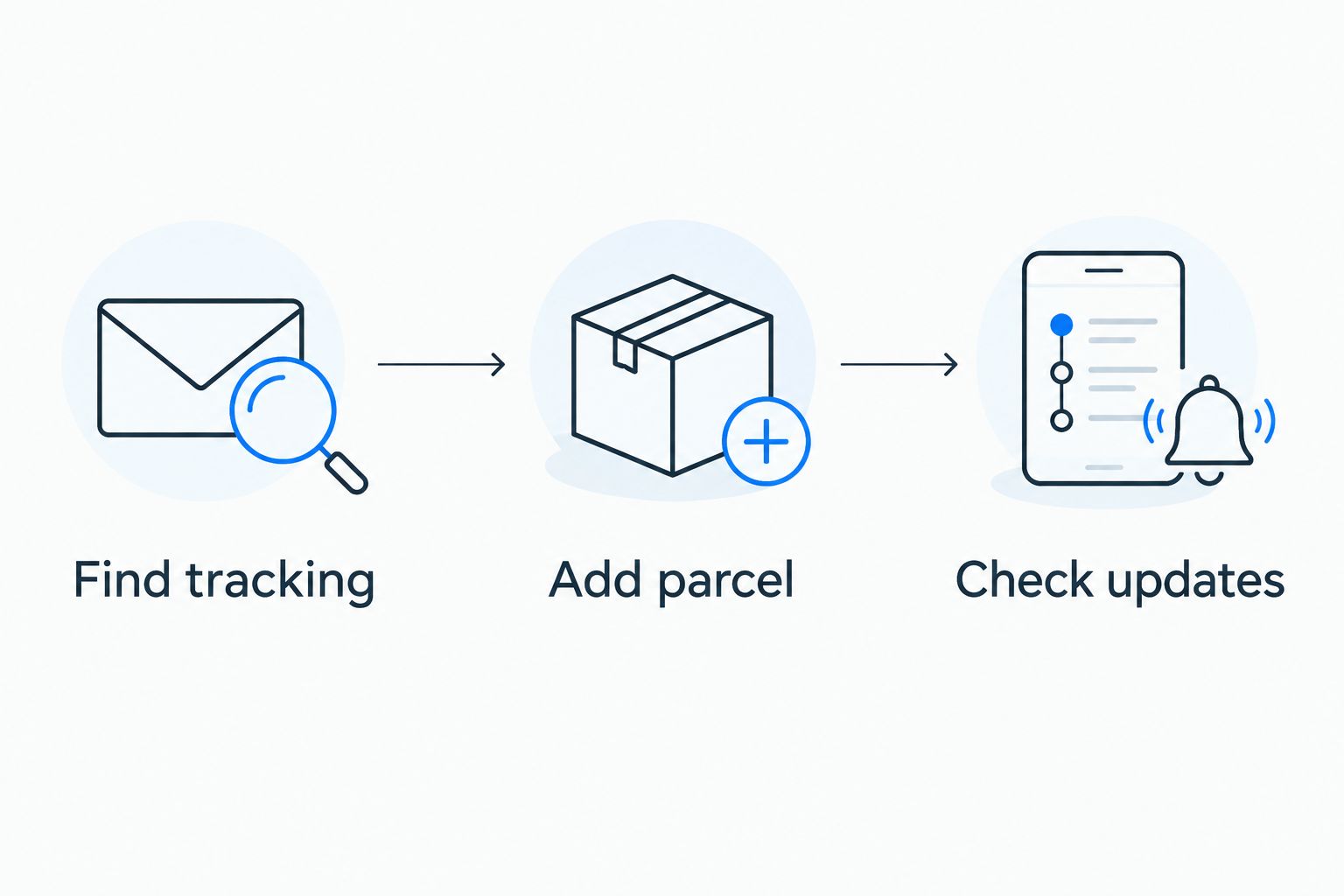
The workflow has three parts: Find tracking, Add parcel, then Check updates. Finish the identity check before relying on notifications.
Check updates
- Open the saved parcel and make 2 checks: confirm the tracking number and confirm the carrier against your dispatch email.
- Review the latest tracking event. A shipment-information event is not the same as a physical collection scan.
- Enable Shop notifications in your phone’s notification settings if you want alerts. Check the app’s own notification preferences as well.
- Compare any unclear event with the courier tracking page reached from your dispatch email. Read the event description and timestamp, not just the summary heading.
Expected result: You can identify the correct parcel, read its latest reported event and receive permitted notifications. A saved parcel without movement is not proof of a failed connection.
Use courier events to judge shipment progress, not the presence of an order tile. In 2026, the same distinction applies whether you are following a Pop! Vinyl figure, manga or trading cards.
Import future orders automatically
Automatic import is the adjacent workflow: Shop identifies eligible orders through supported account or connected-email features instead of you entering every parcel manually. It is convenient, but it involves different permissions and does not guarantee that every order will appear.
Open Shop’s account settings and review the email connections offered in your version. Read the permission request before approving a connection, and use an email account that receives your order messages. If you prefer not to grant inbox access, keep using manual tracking.
| Workflow | Best for | Advantage | Limitation |
|---|---|---|---|
| Manual tracking | Following a particular parcel without connecting an inbox | You choose the shipment to add | You must enter tracking details yourself |
| Automatic import | Bringing eligible order emails into Shop | Reduces repeated entry | Requires supported connections and relevant permissions |
| Courier tracking page | Checking a shipment event directly | Shows the carrier’s published tracking record | Does not organise purchases across retailers |
After connecting an email account, check whether the relevant purchase appears. Do not repeatedly reconnect the inbox to force a shipment update: importing an email and receiving a new courier scan are separate processes.
For a private 2026 setup, choose manual tracking and review notification previews on your phone’s lock screen. Parcel names can reveal what you bought.
Troubleshooting
The order does not appear automatically
Check that Shop is using the email account that received the order messages. Review connected-email permissions where applicable, then add the shipment manually if you have a supported courier tracking number. Do not place another purchase to fix an import problem.
Shop rejects the tracking number
Copy the reference again from the dispatch email. Check for missing letters, extra spaces and confusion between the order number and tracking number. Confirm the carrier; if Shop cannot recognise the shipment, use the courier tracking page instead.
The parcel appears but has no movement
Check the courier’s own events. Creating shipment information does not establish that the courier has collected the parcel. Ask the retailer about dispatch questions and the courier about events recorded in its network, using the relevant reference each time.
Notifications are missing
Open the parcel to see whether tracking itself has updated. If it has, check Shop’s notification preferences and your phone’s permissions, including focus or do-not-disturb settings. Notifications and shipment data are separate checks.
The same parcel appears twice
Compare tracking numbers before removing anything. Keep 1 record per parcel as an organising rule, but retain separate records for genuinely different shipments. An imported purchase record and a manually added parcel can otherwise look like two deliveries.
Customise your workflow
Name entries by purchase rather than by a vague label such as parcel. Keep the original emails until you have received and checked the contents, and avoid sharing tracking screenshots that expose your address or reference numbers.
Tracking is only one part of collecting. If cards are arriving, prepare their storage before opening them; the guide to storing trading cards to keep them mint covers the next task.
FAQ
How do I connect my Pop Stop order to Shop?
Check whether the order already appears in Shop, then add the parcel manually with its courier tracking number if needed. Use the carrier named in your dispatch email and compare the saved reference before relying on updates.
Can I use my order number for Shop tracking?
Use the courier tracking number for manual parcel tracking, not the retailer’s order number. Keep the order number for purchase enquiries.
Do I have to connect my email inbox to Shop?
No. You can manually add a supported parcel using its courier tracking number without choosing the connected-inbox workflow.
Why does Shop show my order but no delivery movement?
An order record does not prove that a courier has collected the parcel. Check the carrier’s tracking events to distinguish shipment information from physical movement.
Is Shop more accurate than the courier’s tracking page?
Shop presents tracking information rather than operating the courier’s delivery network. Check the courier’s published events when a status is unclear or differs between displays.
Does adding tracking to Shop change my delivery address?
No. Adding a tracking record does not change the shipment instructions. Raise an address issue with the retailer or carrier handling the delivery.
One last thing
Set up tracking before you need it urgently. For your next 2026 delivery, compare the saved tracking reference with the dispatch email immediately after adding it. That small check prevents you from following the wrong parcel with complete confidence.

