

Pop Stop Rewards Program: Sync Online & In-Store 2026
Every Pop! Vinyl, trading card booster and Gundam kit you buy at Pop Stop should land in the same rewards account, whether you paid at the till or checked out online. Sync your Pop Stop Rewards account once and every future purchase — in-store or on popstop.co.nz — tracks against one profile instead of two disconnected histories.
- Pop Stop Rewards only works across both channels when the same email is used in-store and online.
- Points do not merge retroactively — purchases made under a mismatched email stay separate forever.
- Set the account up before your next purchase in 2026, not after, to avoid a support back-and-forth.
- Guest checkout online skips rewards tracking completely — sign in before you pay, not after.
Why this matters
Pop Stop runs a retail store and popstop.co.nz side by side, and collectors who buy Pokémon boosters one week and a blind box the next often end up with purchase history split across two logins. That mismatch is the single biggest reason a rewards balance looks wrong to shoppers buying across both channels.
A synced pop stop rewards program fixes the split going forward. It does not fix it retroactively — that's the detail most setup guides skip, and it's the reason this guide leads with it instead of burying it in troubleshooting.
Before you start
- An active Pop Stop Rewards account — create one online or ask staff to set one up on your next store visit.
- The same email address used every single time you buy, at the till and at checkout.
- Your last few order confirmation emails or receipts, in case an earlier purchase needs a manual check.
- The gotcha: purchases made before the account existed, or made under a different email, will not join your balance later. Get the account linked before you buy again, not after the fact.
Set up your Pop Stop Rewards account online
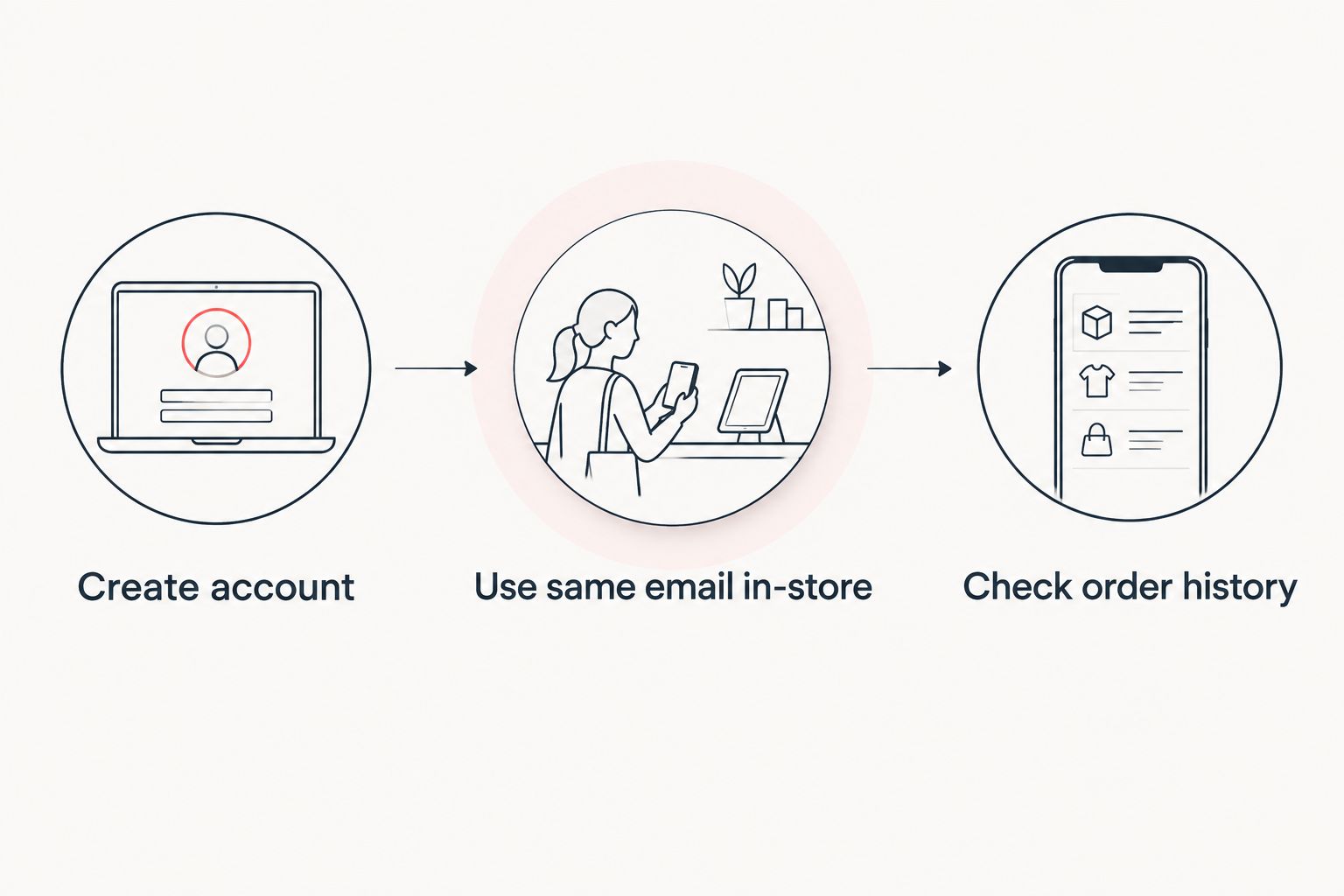
- Go to popstop.co.nz and create an account using the exact email address you plan to use for every purchase going forward — online and in-store.
- Confirm your email address if a verification step appears before the account activates.
- Open your account page and check the name and email on file are correct before your first tracked purchase.
Expected result: one active account, tied to one email, ready to attach to a purchase.
Link your in-store purchases to the same account
- On your next visit to the physical store, give staff the same email address tied to your online account before they ring up the sale.
- Ask staff to confirm the sale is attaching to your existing account rather than opening a second one under a new email.
- Keep the receipt until you've checked the purchase shows up in your order history online.
Expected result: the in-store purchase appears alongside your online orders under the one account, not as a separate record.
Skip guest checkout to keep every online order counted
This is the variant of the same workflow that trips up the most people: buying online without signing in first. A guest order doesn't attach to any rewards account, signed-in or not, and it can't be attached to one after the fact.
The fix is the same principle as the in-store step — sign in before checkout, not after. If you've already placed a guest order, treat it as a lesson for the next one rather than something to fix retroactively.
Collectors chasing Pokémon TCG singles like the Mega Evolution Perfect Order booster or restocking blind boxes tend to buy often enough that a handful of untracked guest orders adds up fast across 2026.


Troubleshooting Pop Stop Rewards sync issues
- Points missing after an in-store purchase — the most common cause is a mismatched email. Check the receipt against the email on file and ask staff to correct it.
- Order placed as a guest online — sign in and place a new order while signed in; the earlier guest order itself won't retroactively attach.
- Two accounts exist under different emails — pick the one you use most and direct future purchases there. Old history under the second account won't merge on its own.
- Receipt lost after an in-store visit — an online order confirmation works as a backup record, but an untracked in-store receipt without a linked email can't be traced after the fact.
Get more from your Pop Stop Rewards account
Once both channels are syncing correctly, the account becomes a running record of everything from Pop! Vinyls to trading card boosters, useful if you're trying to track what you've already picked up before buying doubles. Fans stacking up on singles ahead of a set release get the most value from checking their order history before a shop trip — the Pokémon TCG booster box guide is a useful next read if boosters are the bulk of what you're buying.
FAQ
How do I check my Pop Stop Rewards balance?
Sign in to your account on popstop.co.nz using the email tied to your purchases and check the account page. Balances only reflect purchases made while signed in with the correct email.
Can I link an in-store purchase to my Pop Stop Rewards account after I've already paid?
Generally no — the account has to be identified at the time of sale. Ask staff at the time of purchase rather than trying to fix it afterward.
Does guest checkout online earn Pop Stop Rewards points?
No. Guest checkout doesn't attach to any account, so sign in before you pay if you want the purchase tracked.
What happens if I use different emails in-store and online?
Purchases split across two separate histories instead of one. Pick a single email and use it every time going forward.
Can I use the same Pop Stop Rewards account in the physical store and online?
Yes, as long as the same email is used for both. That's the entire mechanism behind syncing the pop stop rewards program across channels.
Why don't my old Pop Stop purchases show up under my rewards account?
Either the account didn't exist yet when you bought, or a different email was used. Neither case merges into your current balance automatically.
One last thing
Most reported discrepancies with Pop Stop Rewards trace back to one thing: an old guest checkout placed under a different email than the account created afterward. Check that first before assuming a 2026 purchase simply didn't register — it's almost always an email mismatch, not a missing sale.

